
GT Auto Clicker

Want to automate repetitive mouse clicks on your computer? If yes, then GT Auto Clicker is a free automation tool that allows you to simulate automatic clicks on your Windows PC. It’s fast, lightweight, & helps you save time.
What is GT Auto Clicker?
GT Auto Clicker is a free software designed to perform clicks automatically without requiring continuous manual effort. With this tool, you can easily generate clicks at specified intervals and screen locations based on your preferences. Additionally, it can help you improve productivity across different tasks and workflows.
It is widely used by gamers, software testers, data entry professionals, and office workers who regularly perform repetitive clicking tasks. The software features a user-friendly interface that makes the setup process quick and easy for beginners.
How does it work?
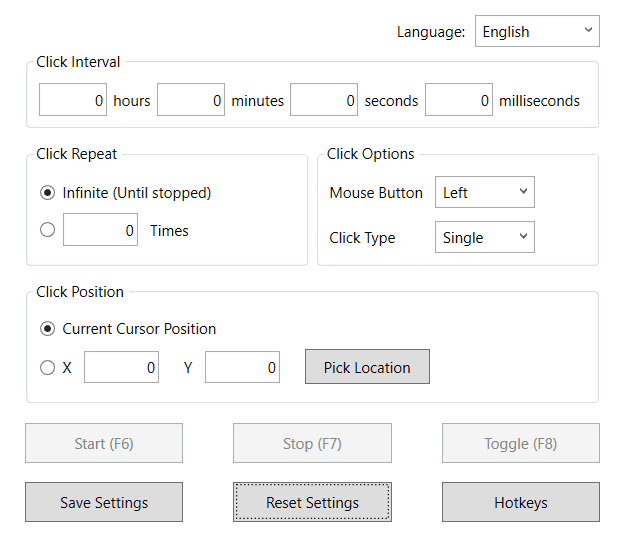
Unlike complex automation software, GT Auto Clicker focuses on a single purpose, which is automating mouse clicks efficiently and reliably. You can customize click intervals, mouse buttons, click type, click repetition, cursor position, and hotkeys without any technical knowledge.
Whether you need auto clicking for gaming, data entry tasks, testing applications, or reducing physical strain on your fingers, this tool provides a simple solution that works on most Windows computers.
Download GT Auto Clicker for Windows
| App Name | GT Auto Clicker |
| Developer | GTWS Tools |
| File Size | 2.5 MB |
| Version | 1.0.9.0 |
| Category | Automation Utility |
| Supported OS | Windows 10 & Windows 11 |
| License | Free |
Key Features
Easy-to-Use Interface
GT Auto Clicker is designed with simplicity in mind. Its clean and minimal interface allows users to configure click settings without navigating through complicated menus. All the most important settings are neatly displayed on the main window, making it easy for first-time users to get started within a few clicks.
Lightweight Application
One of the biggest advantages of this tool is its lightweight design. It consumes low CPU and memory resources, allowing it to run smoothly in the background while you continue using other applications. This makes it suitable for both modern and older computers without significantly affecting system performance.
Safe & Virus-Free
Safety is a top priority for GT Auto Clicker. The software is completely free from malware, spyware, and viruses, making it a trusted choice for users worldwide. It does not require unnecessary permissions or background data collection, which allows users to maintain their privacy and security.
Highly Compatible
It supports a wide range of Windows operating systems, including Windows 11, Windows 10, and Windows 8.1. You can use this tool seamlessly with all types of desktop applications, web browsers, games, spreadsheets, and more.
Multiple Click Options
Different tasks require different clicking behaviors, and this auto-clicking software provides multiple configuration options to match your specific requirements. You can choose between (Left, Right, or Middle) mouse buttons as well as (Single or Double) types of clicks, and adjust them according to your needs.
Customizable Hotkeys
With customizable hotkeys, you can easily assign keyboard shortcuts to start or stop automated clicking instantly. This feature eliminates the need to switch between windows or manually activate & deactivate the software each time.
Save & Reset Settings
Save your preferred settings for future use, so you don’t need to configure them every time you perform the same task. It also includes a Reset option that allows you to quickly restore the default settings whenever needed.
How to use GT Auto Clicker?
Getting started with GT Auto Clicker is a straightforward process. Follow the steps below to set up the software and start automating clicks in minutes. Before installation, make sure your system meets the following requirements.
Minimum System requirements:-
- Operating system: Windows 10, 11, or later
- Processor: 1 GHz or faster
- RAM: 2 GB or more is recommended
- Storage Space: Less than 100 MB available
- Display: 1024 × 768 Resolution or higher
- Internet Connection: Not required after installation
1. Download and Install
Download the latest version of GT Auto Clicker from the download page. Once the installer has been downloaded, double-click the setup file and follow the on-screen instructions. After the installation is complete, launch the software.
2. Set Click Intervals
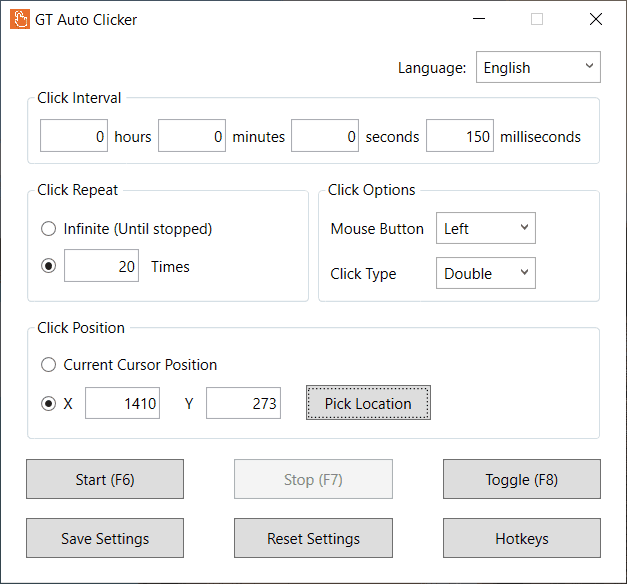
Now set the Click Interval, which determines how quickly the software generates automated clicks. You can customize this setting in hours, minutes, seconds, or milliseconds, depending on your needs.
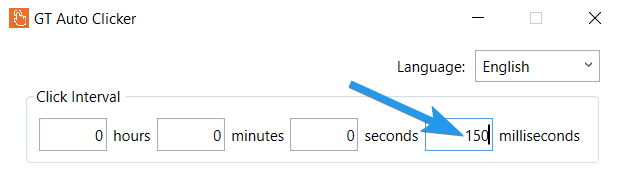
For example, an interval of 100-250 milliseconds may work well for daily routine tasks, while 10-50 milliseconds is ideal for gaming and other activities that require faster clicking.
3. Select Click Repetitions
After setting the intervals, configure the Click Repeat setting to choose how many times the software should click. You can select a specific number of clicks or use the “Repeat Until Stopped” option for continuous clicking.
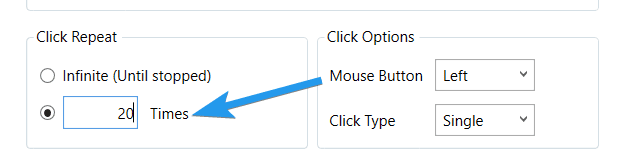
The infinite mode is useful for long automation tasks, while fixed repetitions are more suitable for tasks that require an exact number of clicks.
4. Choose Clicking Options
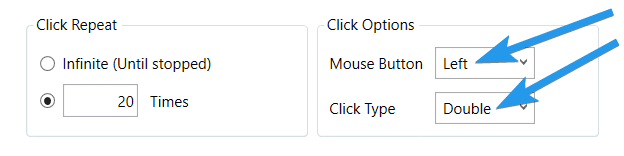
Next, select the Click Options that match your task requirements. Choose the preferred mouse button (left, right, or middle) and click type (single or double) to automate the specific actions you want the software to perform.
5. Pick Click Location
After that, choose the screen location where the auto clicks should occur. You can either use the “Current Cursor Position” option or specify fixed X-Y coordinates.
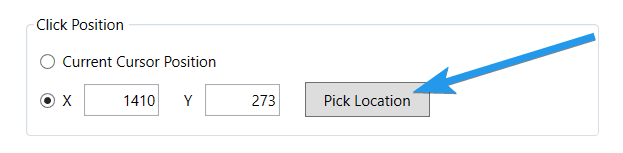
A fixed location is useful when you need to repeatedly interact with a specific button, icon, or interface element. The current cursor position option allows clicks to occur wherever you move the mouse pointer on the screen.
6. Customize Hotkeys
Finally, set a custom hotkey to start or stop the auto clicker quickly. You can choose any key combination that is convenient for you and doesn’t conflict with your ongoing work, gameplay, or other applications.
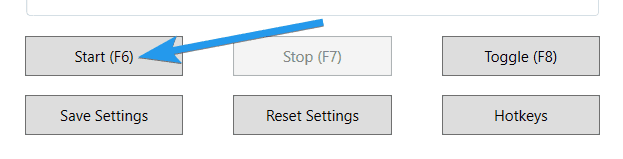
Once configured, simply press the assigned hotkey to begin auto-clicking. By default, the hotkeys are set to Start (F6) and Stop (F7), while the Toggle (F8) button enables you to turn it on or off instantly.
Common Use Cases
Gaming and Click-Intensive Tasks
Many games require repeated clicking for gathering resources, performing actions, managing inventory, or completing repetitive gameplay tasks. GT Auto Clicker lets you automate those repetitive clicking actions, reducing physical strain and saving time during long gaming sessions.
You can use this tool in popular games like Roblox, Minecraft, Cookie Clicker, and other click-intensive games. However, before using auto-clicking tools, always check the game’s policies and guidelines before using them.
Productivity and Repetitive Work
If your job involves monotonous clicking tasks, this tool can help you improve productivity while reducing repetitive manual work. It is ideal for data entry operators, office workers, and other professionals who regularly perform routine actions such as processing entries, updating spreadsheets, and filling out forms.
Accessibility and Motor Assistance
Some users experience discomfort, fatigue, or physical limitations that make repetitive clicking difficult. By using auto-clickers, they can easily interact with their computers more comfortably and perform click-based tasks for longer periods.
This accessibility focused use makes these tools more valuable not only for convenience but also for making everyday computer interactions easier and more comfortable.
Software Testing and UI Automation
Developers, QA professionals, and software testers frequently need to repeat the same mouse actions during software testing. In such scenarios, GT Auto Clicker assists with UI testing, button response checks, stress tests, repetitive workflow verification, and basic interaction automation.
This tool provides a quick way to perform repetitive test actions without writing custom scripts, especially when manual clicking would be time-consuming and prone to errors.
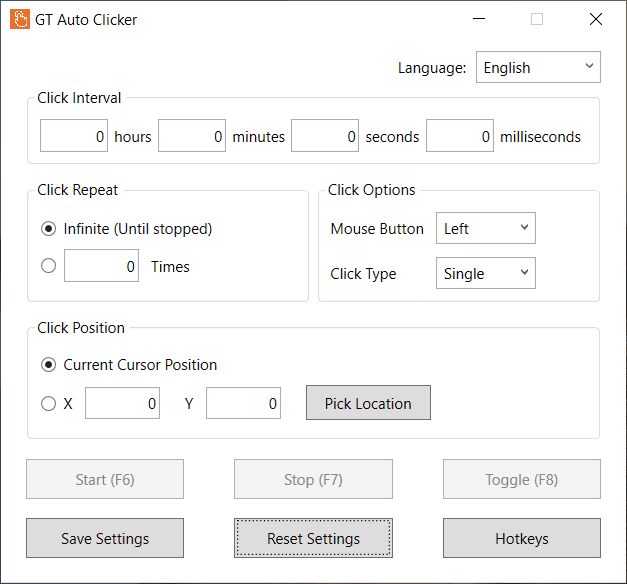
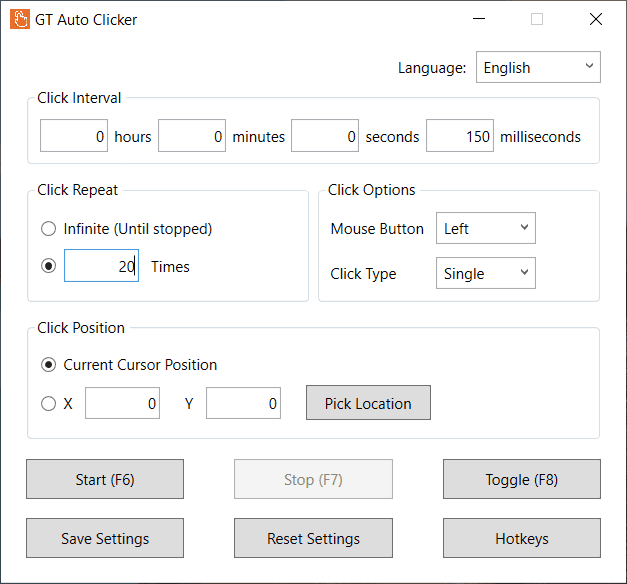
App Screenshots
Frequently Asked Questions
Is GT Auto Clicker Free to Download?
Yes, GT Auto Clicker is completely free for Windows users. You can easily download, install, and use the software from its official website or the Microsoft Store at no cost.
Is GT Auto Clicker Safe to Use?
Yes, GT Auto Clicker is absolutely safe to use, but you should always download it from trusted sources. As a precaution, it is a good idea to scan the installer file with antivirus software or online malware scanners for added security.
Does GT Auto Clicker Work on Windows 11?
Yes, GT Auto Clicker is fully compatible with Windows 11 and also works on older versions, such as Windows 10, Windows 8.1, and Windows 7. The software is lightweight and can run smoothly on older and low-end systems.
How Do I Use GT Auto Clicker on PC?
Using GT Auto Clicker is simple on a Windows PC. Just install the software, open the application, set the click interval, select the click type & mouse button, choose the click location, and start auto clicking using the assigned hotkey.
Can I Run GT Auto Clicker on a Chromebook?
No, GT Auto Clicker is not natively designed for Chromebook devices. However, you may be able to use Android auto-clicker apps through the Google Play Store or by manually installing APK files, depending on your ChromeOS version and settings.
Can I install GT Auto Clicker on macOS?
GT Auto Clicker is developed for Windows operating systems and does not natively support macOS. Mac users can consider other alternative tools that are specifically built for macOS.
Is GT Auto Clicker Available for Android Devices?
Yes, GT Auto Clicker is available for Android devices like smartphones and tablets. If you want, you can download the APK file from its official website or install the app directly from the Google Play Store.
Ready to Automate Repetitive Clicks?
Save time, reduce manual effort, and start automating repetitive tasks instantly.