
If you have been using GT Auto Clicker for automating clicking tasks on your Windows PC and are now thinking of uninstalling it for any reason, then you are in the right place.
Whether you are troubleshooting, removing unused apps, or simply switching to another alternative, this article is for you. In this article, we will show you four different methods to uninstall GT Auto Clicker safely, as well as how to completely remove its temporary files.
How to Uninstall GT Auto Clicker? [4 Methods]
Although GT is one of the best auto clickers on the market but due to some reasons, many users don’t like it. Reasons like having performance issues, outdated features, not working perfectly with different games, or facing some software conflicts.
Method 1: Using Windows Settings
If you are using Windows 10 or Windows 11, you can easily uninstall it directly from the default system settings. Here are the steps to follow:-
- Go to the Start Menu and then click on the Settings icon.
- Now navigate to the Apps section by clicking on it.
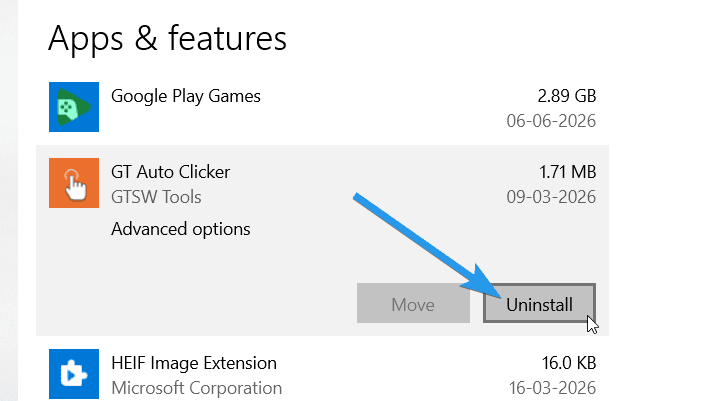
- Once you are in the Apps & features section, scroll down and look for the “GT Auto Clicker: Free Auto Click” application.
- After that, click on the app icon and then click on the Uninstall button.
- Now wait for a minute, and you will see the app is uninstalled.
Method 2: Using Control Panel
For a very long time, the Control Panel has been one of the most common and reliable ways for uninstalling applications from Windows. Here are the steps you can follow:-
- First, press “Windows key + R” to open the Run dialog box.
- Now type “control” in the field and hit the Enter button.
- After that, the Control Panel window will open up.
- Now, under the Programs section, click on the “Uninstall a program” link.
- After that, locate the “GT Auto Clicker” app, right-click on it, and then select the “Uninstall” option.
- Now it will ask “Are you sure you want to uninstall this product?“, so click on “Yes” to complete the uninstallation process.
Method 3: Manually Deleting Remaining Files & Folders
Even after the uninstallation, some of the temporary files or logs might be left behind. So, deleting them manually can help you to uninstall as well as remove the leftover files directly. Here are the steps to follow:-
- Open the File Explorer. ( Can use shortcut keys “Windows + E” )
- Now navigate to the “C: \Program Files\“, locate the “GT Auto Clicker” folder, and then delete it.
- After that, go to “C:\Users\AppData\“, then locate the GT Auto Clicker temporary files and delete all those files.
- Finally, empty your Recycle Bin to permanently remove them.
Important Tip:- You can also type “%appdata%” in the Run dialog box and hit Enter to access the AppData folder quickly.
Method 4: Using a third-party Uninstaller Tool
Sometimes, even after uninstalling an app, some temp files and registry files remain on your system. Although you can manually delete them but using a third-party uninstaller can help you make this process even easier.
A few third-party tools that we recommend for uninstalling apps are:-
- CCleaner (My Favorite One)
- Revo Uninstaller
- IObit Uninstaller
And here are the steps you can follow to uninstall any application:-
- Download and install the CCleaner application.
- Once the app is installed, open it and go to the Tools section.
- In the Tools section, you will find “Uninstaller“, so click on it to run.
- Now search for the “GT Auto Clicker“, click on the app, and then select the “Uninstall” option.
- After that, it will start removing all the associated files and registry entries from your system.
This way, you will completely uninstall the app as well as remove its temporary files and logs in one go.
Conclusion
Uninstalling GT Auto Clicker is a very simple process and only takes a few minutes. Whether you are using Windows settings, Control Panel, or a third-party uninstaller, you can easily remove it within a few minutes. And if you ever decide to reinstall it later, you can easily download it from its official website or any trusted source.