Auto clickers are simple tools with a straightforward purpose: they automate mouse clicks so you don’t have to keep pressing a button manually. They’re useful for repetitive tasks, testing, accessibility, and certain games where automation is allowed.
But not every auto clicker you find online is trustworthy.
A malicious program can disguise itself as a harmless clicking utility while doing something completely different in the background. It could potentially contain spyware, a keylogger, an information stealer, or other unwanted software.
That doesn’t mean every free auto clicker is a virus. The real question is where you downloaded it, what it asks permission to do, and how it behaves after installation.
Here are five warning signs that should make you stop and investigate before continuing to use an auto clicker.
1. You Downloaded It From a Suspicious Website
The first warning sign is often the easiest one to overlook: the source of the download.
If you found an auto clicker through a random download page covered in pop-ups, fake download buttons, redirects, or unrelated advertisements, you should be cautious.
The problem isn’t that every third-party website distributes malware. It’s that you have much less confidence about whether the file is the original application, a modified version, or an installer bundled with something else.
Microsoft recommends downloading software from trusted sources and specifically warns that software downloaded from third-party websites can sometimes install unwanted programs alongside the application you intended to install.
Before installing an auto clicker, check:
- Who developed it?
- Does the developer have an official website?
- Is the download hosted by a reputable platform?
- Does the version match the developer’s current release?
- Are there genuine user reviews or community discussions?
- Does the download page clearly explain what you’re installing?
Be particularly careful with files advertised as “cracked,” “undetectable,” “premium unlocked,” or “100% virus-free.” Marketing claims are not a substitute for verification.
2. It Requests Permissions That Don’t Make Sense
An auto clicker needs to interact with your mouse. That’s its entire purpose.
So if a supposedly simple clicking tool asks for access that appears unrelated to mouse automation, take a closer look before granting it.
Potential warning signs include requests for:
- Access to personal files
- Keyboard monitoring
- Camera or microphone access
- Extensive network permissions
- Persistent background access
- Other privileges that aren’t clearly explained
An administrator prompt deserves attention too, although it isn’t automatically proof that the program is malicious. Some legitimate Windows applications require elevated privileges for technical reasons.
The important question is why the application needs the permission.
If the developer provides no explanation, or the requested access seems completely unrelated to what an auto clicker should do, it’s better to stop and investigate rather than blindly clicking “Allow.”
Remember that malware can disguise itself as a legitimate application, which is one reason Windows treats unknown and potentially unwanted applications cautiously.
3. It Installs Extra Software You Didn’t Ask For
A clean auto clicker should not surprise you with a collection of unrelated programs.
Some questionable installers bundle additional software with the application you’re actually trying to install. These extras might include browser extensions, toolbars, system utilities, advertising software, or other potentially unwanted applications.
Pay attention during installation if you see:
- Pre-selected offers for unrelated software
- Browser settings you didn’t choose
- New extensions
- Unknown applications
- Driver or “optimization” utilities
- Separate programs being installed alongside the clicker
- Vague offers that require you to click “Accept”
This type of software isn’t necessarily malware. Microsoft distinguishes potentially unwanted applications (PUAs) from malware because PUAs can cause problems such as unwanted advertising, performance issues, or additional software installation without necessarily meeting the definition of malware.
Still, an installer that tries to add several unrelated programs is a good reason to reconsider whether you want it on your computer.
A trustworthy installation process should make it reasonably clear what is being installed.
4. Your Antivirus Flags It or the Program Behaves Suspiciously
An antivirus warning is one of the most important signs to investigate.
If Windows Security, Microsoft Defender, Malwarebytes, or another reputable security product identifies an auto clicker as malware, a Trojan, spyware, or another serious threat, don’t simply disable your antivirus and continue the installation.
At the same time, one detection isn’t automatically proof that the program is malicious.
Some legitimate utilities can occasionally trigger false positives because of the way they interact with input devices or the operating system. That’s why you should look at what was detected and where the file came from rather than assuming either extreme.
If the software is from an unknown source and multiple reputable security products identify it as a serious threat, the warning deserves much more attention.
You should also watch what the program does after installation.
For example, be suspicious if the computer suddenly experiences:
- Unexpected pop-ups
- Random browser tabs
- Unknown applications opening
- Command Prompt windows appearing
- Unexplained network activity
- Major performance problems
- Processes continuing after you close the auto clicker
Microsoft lists unexpected ads, unusual slowdowns, increased data usage, and unexplained background activity among possible signs that unwanted software or malware may be running.
If Defender detects a threat, its Protection History can show what was detected and what action was taken.
5. It Uses Significant Resources or Runs in the Background When It Shouldn’t
An auto clicker doesn’t normally need to consume a large amount of system resources when it isn’t doing anything.
That’s why unexplained CPU, GPU, memory, or network usage can be a useful warning sign.
Open Windows Task Manager and look at what happens when the auto clicker is:
- Closed completely.
- Open but idle.
- Actively running a clicking task.
If the program continues consuming significant resources after you’ve stopped it, investigate further.
You should also check whether it has created unexpected startup entries or background processes. Legitimate applications can have update services and startup components, so their presence alone doesn’t prove malware. The concern is when you can’t identify the process, the developer never documented it, or the behavior started immediately after installing the program.
Unexpected system slowdowns are another reason to investigate. Microsoft notes that sudden performance problems can occur when an unknown process is consuming system resources in the background.
What Can Malicious Auto Clickers Do?
The risks go far beyond annoying pop-ups.
A malicious program disguised as an auto clicker could potentially contain different types of malware, including:
Keyloggers: These can record what you type and potentially expose passwords or other sensitive information.
Spyware: This can monitor activity or collect information from your device.
Information stealers: These may target credentials or other valuable account data.
Ransomware: More serious malware can encrypt files or otherwise prevent you from accessing your data.
Microsoft describes malware as malicious software that can steal personal data, damage files, spy on users, or misuse a device.
That’s why the source of an auto clicker matters just as much as the tool itself.
How to Stay Safe When Downloading an Auto Clicker
The safest approach is to treat an auto clicker like any other executable program.
Download it from a trusted source, verify the developer, read the installation screens, and keep your security software enabled.
Don’t disable antivirus protection simply because a download page tells you that it’s necessary. Don’t enter your Roblox, Google, email, banking, or other passwords into an auto clicker application.
If Windows Security warns you about a file and you’re unsure whether the detection is legitimate, don’t immediately choose to allow it. Microsoft recommends keeping security intelligence updated and using scans to investigate suspected malware.
If you want to check your PC after installing something suspicious, Microsoft Defender lets you run a Quick scan, Full scan, or Offline scan depending on the situation.
What If You Already Installed a Suspicious Auto Clicker?
If you think an auto clicker may contain malware, stop using it rather than continuing to test it.
Run a security scan, review Windows Security’s Protection History, and check for unfamiliar programs or processes.
If the software may have captured your passwords or other credentials, change those passwords from a trusted device and enable two-factor authentication where possible.
For persistent infections, a deeper scan such as Microsoft Defender Offline can help identify threats that are difficult to remove while Windows is running.
Conclusion
An auto clicker isn’t a virus simply because it automates mouse clicks. There are plenty of legitimate applications that perform this function.
The danger comes from malicious copies, deceptive installers, suspicious download sources, and software that behaves differently from what it promises to do.
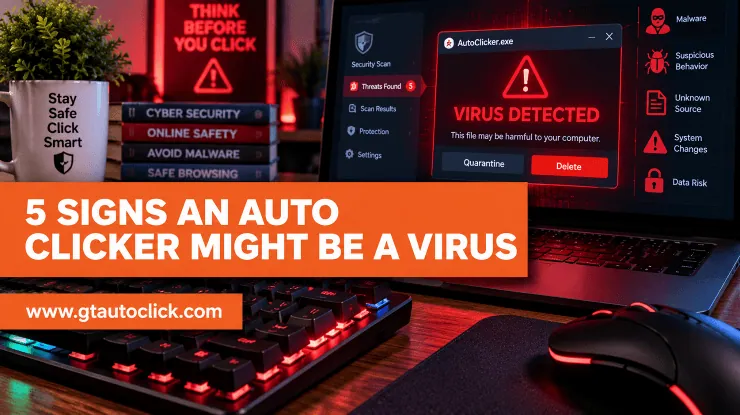
The five biggest warning signs are:
- You downloaded it from an untrusted source.
- It requests unnecessary or unexplained permissions.
- It installs unrelated software.
- Antivirus software flags it or it starts behaving strangely.
- It consumes significant resources or continues running in the background unexpectedly.
No single sign automatically proves that an application is malware. But when several warning signs appear together, don’t take the risk.
A few minutes spent checking the source, developer, permissions, and system behavior can save you from dealing with a compromised computer or stolen account later.