
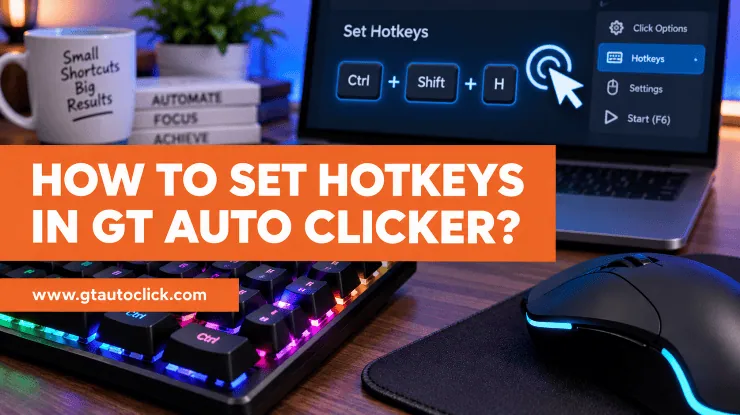
If you use GT Auto Clicker for gaming or repetitive computer tasks, constantly switching back to the application just to start or stop clicking can quickly become annoying. That is where hotkeys make a big difference.
A hotkey lets you control GT Auto Clicker directly from your keyboard. Instead of opening the program or clicking its Start button, you can press a designated key and immediately begin or stop automatic clicking.
GT Auto Clicker provides built-in shortcuts and also allows you to customize them according to your setup. On Windows, the default shortcuts are F6 to start, F7 to stop, and F8 to toggle the auto clicker.
Whether you’re farming in a game, testing an interface, or handling repetitive clicking at work, setting up the right hotkeys makes automation much easier to control.
What Are Hotkeys in GT Auto Clicker?
A hotkey is a keyboard key or key combination assigned to a particular action.
In GT Auto Clicker, hotkeys allow you to control the clicking process without repeatedly opening the software. Once your click settings are configured, you can use the assigned shortcut to start or stop automation whenever you need it.
For example, if you assign F6 as your start key, pressing F6 activates automatic clicking. Pressing your assigned stop key then ends the clicking session.
This is especially convenient when GT Auto Clicker is running in the background while you use another application or game.
Why Use Hotkeys?
Hotkeys aren’t just a convenience feature. They make automation easier to manage and help you switch between manual and automatic clicking without interrupting what you’re doing.
Here are some of the biggest benefits:
- Quick start and stop: Begin or end clicking with a single key press.
- Less distraction: You don’t need to switch windows to control the clicker.
- Better control during gaming: You can activate automation without leaving the game.
- Useful for repetitive work: Start the clicker exactly when a repetitive step needs to be performed.
- Immediate shutdown: A dedicated stop key gives you a quick way to end automation if something goes wrong.
For tasks that require frequent switching between manual and automatic input, this can make GT Auto Clicker considerably more practical.
Default GT Auto Clicker Hotkeys
GT Auto Clicker comes with default shortcuts that make getting started straightforward:
- F6 — Start
- F7 — Stop
- F8 — Toggle
The toggle option is particularly convenient because one key can switch the automation between running and stopped states. You can also change these shortcuts if the defaults conflict with your keyboard, game, or another application.
If F6 is already being used by another program, for example, assigning a different shortcut can prevent unexpected behavior.
How to Set a Custom Hotkey in GT Auto Clicker
Changing the shortcut is useful when the default keys aren’t convenient or are already assigned to another function.
Follow these steps:
Step 1: Open GT Auto Clicker
Launch GT Auto Clicker on your Windows computer.
Before changing the hotkey, make sure the program is running normally and that your basic click settings are already configured.
Step 2: Open the Hotkey Settings
Find the Hotkeys option in the application and open its configuration panel.
This is where you can change the keyboard shortcuts used to control automatic clicking.
Step 3: Choose the Action
Select the action for which you want to assign a shortcut.
Depending on the version and configuration, this can include functions such as:
- Start
- Stop
- Toggle
For simple automation, having separate Start and Stop keys is often the easiest setup.
Step 4: Press Your Preferred Key
Select the hotkey field and press the key or key combination you want to use.
Function keys such as F6, F7, or F8 are convenient choices because they usually don’t interfere with normal typing.
You can also use a combination involving keys such as Ctrl, Alt, or Shift if that works better for your setup.
Step 5: Save and Test the Shortcut
Save the new configuration and test the hotkey before using it for an important task.
Start with a harmless application or a simple test area so you can confirm that the shortcut starts and stops clicking exactly as expected.
Configure Your Click Settings Before Using the Hotkey
A hotkey only controls the automation. You still need to configure GT Auto Clicker’s clicking behavior correctly.
The main settings include Click Interval, Click Repeat, Click Options, and Click Position.
Click Interval
This determines how much time passes between clicks.
A shorter interval produces faster clicking, while a longer interval produces slower and more spaced-out clicks.
For general repetitive tasks, it is better to start with a moderate interval and adjust it gradually. Around 200 milliseconds can be a sensible starting point for beginners before experimenting with faster speeds.
Click Repeat
You can either specify a fixed number of clicks or choose Infinite (Until Stopped).
Use a fixed count when you know exactly how many clicks are required. Infinite clicking is more suitable for tasks that should continue until you manually stop the automation.
Click Type and Mouse Button
GT Auto Clicker lets you select the mouse button and click type.
You can choose between:
- Left click
- Right click
- Middle click
- Single click
- Double click
Make sure these settings match the action you actually want to perform.
Click Position
You can use Current Cursor Position or select a fixed location using Pick Location and its X/Y coordinates.
A fixed location is useful when you repeatedly need to click the same button. Current Cursor Position is more convenient when you want the automation to follow where your pointer is placed.
How to Start and Stop GT Auto Clicker With Hotkeys
Once everything is configured, using the hotkeys is straightforward.
To Start
- Open the application or game where you want the clicks to occur.
- Place the cursor at the correct location if you’re using Current Cursor Position.
- Press your assigned Start hotkey, such as F6.
- GT Auto Clicker begins clicking according to your settings.
To Stop
Press your assigned Stop hotkey, such as F7.
The clicking should stop immediately, allowing you to take back manual control.
If you’re using the Toggle shortcut, such as F8 by default, pressing it switches the clicker between its active and inactive states.
This is particularly useful when you don’t want separate keys for starting and stopping.
Choosing the Best Hotkey
The best hotkey is one that is easy to reach but doesn’t interfere with anything else you’re doing.
Function keys are a good starting point, but you should avoid shortcuts that already perform important actions in your operating system or application.
For example, don’t assign a shortcut that you frequently use for:
- Copying and pasting
- Switching applications
- Opening menus
- Activating an important game control
If you’re using GT Auto Clicker while gaming, choose a key that you can reach comfortably without interfering with movement or combat controls.
A good hotkey should feel almost invisible: easy to press when needed but unlikely to be triggered accidentally.
What If the Hotkey Isn’t Working?
Sometimes the shortcut may not respond as expected. The problem is usually related to a conflicting shortcut, permissions, or the application not receiving the keyboard input.
Try these solutions:
Change the Hotkey
Another application or game may already be using the same key. Open GT Auto Clicker’s hotkey settings and assign a different shortcut.
Run the Application With Appropriate Permissions
Some applications may restrict background input or global shortcuts. Running GT Auto Clicker with appropriate permissions can help in situations where the hotkey isn’t being recognized.
Check Background Applications
Game overlays, communication apps, keyboard utilities, and other automation software can sometimes interfere with shortcuts.
Close unnecessary background programs and test the hotkey again.
Test Outside the Game
Before assuming GT Auto Clicker is broken, test the shortcut in a simple application. This helps determine whether the problem is with the hotkey itself or with the game/application you’re trying to control.
What If GT Auto Clicker Clicks in the Wrong Place?
A working hotkey won’t help if the click position is incorrect.
If the clicker starts normally but clicks somewhere unexpected:
- Re-select the target location.
- Check your X/Y coordinates.
- Try Current Cursor Position instead of Pick Location.
- Make sure the target window hasn’t moved.
- Check whether your display resolution has changed.
Coordinate-based clicking can become inaccurate when a window or display configuration changes.
Use Hotkeys Responsibly
Hotkeys make automation easier, but you should still consider where and how you’re using GT Auto Clicker.
Some games, websites, and online services prohibit automated input. Competitive games in particular may have rules against auto-clicking or other forms of automation.
Always check the relevant rules before using an auto clicker, especially when an account could be suspended or restricted.
Conclusion
Setting hotkeys in GT Auto Clicker is one of the simplest ways to make automatic clicking easier to control.
The default F6, F7, and F8 shortcuts give you a convenient starting point, while custom hotkeys let you choose keys that better fit your game, application, or workflow.
Once you’ve configured the hotkeys, pair them with sensible click settings, test everything before starting an important task, and keep a dedicated stop shortcut available.
The goal isn’t simply to automate clicking. It’s to make automation quick, predictable, and easy to control whenever you need it.