
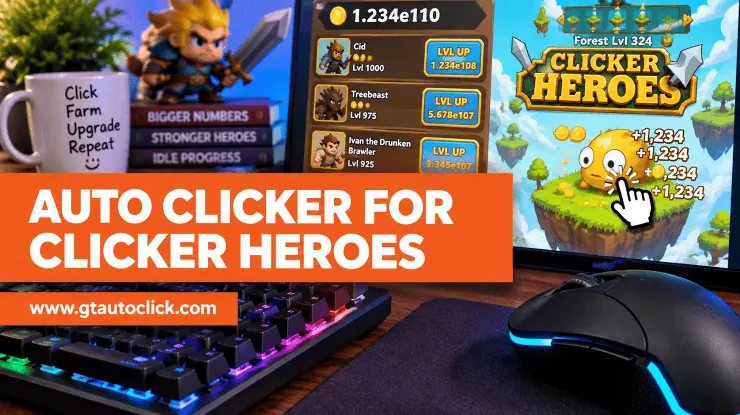
Clicker Heroes is built around a simple but addictive loop: click monsters, earn gold, upgrade heroes, and push into higher zones. The problem is that the further you progress, the more repetitive clicking can become.
That is where an auto clicker can help. Instead of repeatedly pressing your mouse for minutes or hours, you can configure GT Auto Clicker to handle the clicking while you concentrate on upgrades, hero management, and other parts of the game.
Clicker Heroes already includes its own in-game Auto Clicker system, but a desktop auto clicker can provide additional control over click intervals, positions, repeat counts, and hotkeys. The key is to configure it sensibly rather than simply choosing the fastest possible clicking speed.
Why Use an Auto Clicker for Clicker Heroes?
The biggest advantage is simple: you don’t have to keep clicking manually.
Manual clicking can become tiring during long sessions, especially when you’re trying to maintain a consistent rhythm. An auto clicker can handle that repetitive input continuously, reducing the amount of physical effort required.
It can also be useful for players following an active build where clicking contributes significantly to damage. Consistent automated clicks can help maintain that damage output while you focus on purchasing upgrades, leveling heroes, or deciding when to progress.
Another benefit is consistency. Human clicking speed naturally changes over time because of fatigue and distractions. An auto clicker can maintain the interval you configure, giving you predictable input throughout a session.
However, faster clicking isn’t automatically better. Clicker Heroes has its own mechanics and limits, so the goal should be effective automation rather than the highest CPS number you can produce.
What You Need Before Setting It Up
Before configuring GT Auto Clicker, make sure you have:
- Clicker Heroes installed or open in your browser.
- GT Auto Clicker installed on your Windows PC.
- The game visible on your screen.
- A clear target area where you want the clicks to occur.
For a basic setup, you don’t need complicated macros or advanced automation. A single fixed clicking position is usually enough when your goal is to repeatedly click the monster area.
If you’re downloading an auto clicker, always use a trusted source and avoid suspicious websites offering modified or bundled executables.
How to Set Up GT Auto Clicker for Clicker Heroes
The setup only takes a few minutes. The following configuration focuses on continuous clicking at a fixed location.
Step 1: Open Clicker Heroes and GT Auto Clicker
Start Clicker Heroes and GT Auto Clicker on your computer.
It can be helpful to keep the game in a windowed or easily accessible layout while you’re configuring the click position. This makes it easier to verify that GT Auto Clicker is targeting the correct part of the game.
You don’t want to begin with an extremely fast interval. First, make sure the basic setup works correctly.
Step 2: Choose the Click Type
In GT Auto Clicker, select the left mouse button and use a single click.
This is the most straightforward configuration for repeatedly attacking monsters.
There’s usually no reason to use double-clicking or another mouse button when your objective is simply to generate repeated attacks in the monster area.
Step 3: Set the Click Interval
The click interval determines how frequently GT Auto Clicker sends a click.
For a first test, start with a moderate setting such as 100–200 milliseconds. This gives you roughly 5–10 clicks per second and makes it easy to confirm that everything is working correctly.
Once you’ve verified the setup, you can gradually reduce the interval if you need faster clicking.
Don’t assume that the smallest possible interval is automatically the best setting. Extremely rapid input can provide little practical benefit when the game cannot meaningfully process additional clicks.
A moderate starting point also makes troubleshooting much easier.
Step 4: Choose How Many Times to Click
GT Auto Clicker lets you choose how the clicking should repeat.
For a short test, use a fixed number of clicks. This allows you to verify the position and speed without leaving the automation running indefinitely.
Once you’re satisfied with the configuration, choose Infinite or the equivalent continuous option if you want GT Auto Clicker to keep clicking until you manually stop it.
Continuous clicking is particularly useful when you’re spending an extended period farming monsters or maintaining active click damage.
Step 5: Set the Click Position
This is one of the most important steps.
Choose the option that lets you pick a specific location and position the click point over the monster area in Clicker Heroes.
Try to place the target somewhere that consistently falls within the clickable monster area.
A poorly positioned clicker can make the entire setup appear broken when the real problem is simply that the clicks are landing somewhere else.
If you move or resize the Clicker Heroes window later, check the position again. Screen resolution, window size, scaling, or layout changes can affect where a fixed coordinate lands.
Step 6: Set a Start/Stop Hotkey
A hotkey makes the setup much easier to control.
GT Auto Clicker can use a keyboard shortcut to start or stop clicking, allowing you to control the automation without repeatedly opening the application.
The default or configured hotkey may vary depending on your GT Auto Clicker version and settings, so check the Hotkeys section before starting.
Choose a shortcut that doesn’t interfere with your normal gameplay controls. More importantly, make sure you know exactly which key stops the automation before you begin a long session.
What Settings Should You Use?
There isn’t one perfect configuration for every Clicker Heroes player.
A practical starting setup looks like this:
| Setting | Recommended Starting Point |
|---|---|
| Click Type | Left Click |
| Click Option | Single Click |
| Interval | 100–200 ms |
| Repeat | Fixed for testing, Infinite for continuous use |
| Position | Monster Area |
| Hotkey | A convenient, unused keyboard shortcut |
Once everything works, adjust the interval based on how the game responds.
If you want faster clicking, lower the interval gradually instead of immediately jumping to an extreme value. This makes it easier to find a setting that provides useful results without unnecessary input.
Auto Clicker vs. Clicker Heroes’ Built-In Automation
It’s also worth understanding that Clicker Heroes already has an official in-game Auto Clicker system.
The game’s built-in Auto Clickers can be assigned to different functions, including attacking monsters and handling certain repetitive progression tasks. Recent Clicker Heroes updates have also continued to expand and modify how Auto Clickers work.
That makes the built-in option an important choice for players who want automation that is integrated directly into the game.
A desktop tool such as GT Auto Clicker is different because it operates at the mouse-input level and can offer settings such as configurable intervals, click positions, repeat behavior, and hotkeys.
The right choice depends on what you want to automate and which features are supported by your current version of the game.
Can an Auto Clicker Get You Banned in Clicker Heroes?
This is a question worth taking seriously.
You should not assume that every external automation tool is automatically permitted simply because it works technically. Game rules and terms can change, and current guidance indicates that unauthorized automation can be restricted. Always check the latest Clicker Heroes and Playsaurus rules before using third-party automation.
If you choose to use GT Auto Clicker, avoid trying to bypass detection systems or disguise automated input. The safest approach is to understand the rules first and use automation only where it is permitted.
Tips for Better Clicker Heroes Automation
A few simple habits can make the experience much smoother.
Start slowly. Test your configuration before leaving it running for an extended period.
Use the correct position. Most problems with basic auto-clicking come from clicking the wrong location.
Don’t chase maximum CPS. A faster interval isn’t useful if the game can’t benefit from the additional clicks.
Keep your hotkey accessible. You should always be able to stop the automation quickly.
Don’t automate everything. Upgrades, hero choices, skill timing, and progression decisions are still important parts of Clicker Heroes.
Use trusted software. Avoid downloading executables from questionable websites, especially modified versions that you cannot verify.
Conclusion
An auto clicker can make Clicker Heroes much more comfortable for players who spend a lot of time clicking monsters. Instead of continuously pressing the mouse, you can let GT Auto Clicker handle repetitive clicks while you concentrate on upgrades, hero progression, and strategy.
The best setup isn’t necessarily the one with the fastest possible clicking speed. A reliable position, sensible interval, appropriate repeat setting, and convenient start/stop hotkey are far more important.
Start with a moderate configuration, test it, and adjust only when necessary. And before using any external automation, check the current game rules so you know what is permitted.
With the right setup, automation can take care of the repetitive part of Clicker Heroes without taking away the strategic decisions that make incremental progression enjoyable.