
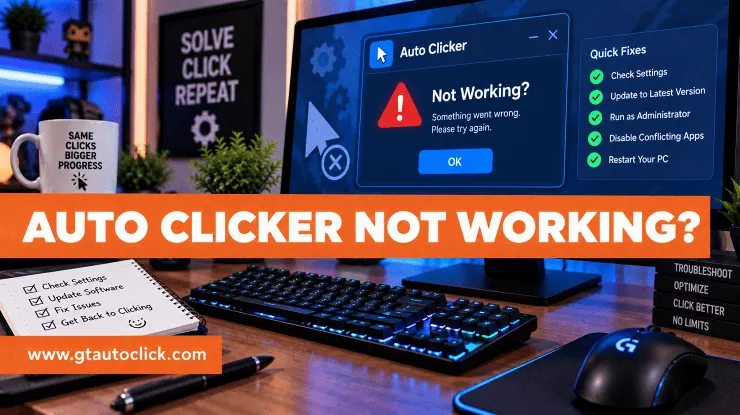
An auto clicker can save a lot of time when you need to repeat the same mouse action over and over. But when the program suddenly stops clicking, refuses to open, or starts clicking in the wrong place, it can be surprisingly frustrating.
The good news is that most auto clicker not working problems have a straightforward cause. Incorrect settings, missing permissions, outdated software, antivirus restrictions, and changes to your screen layout are some of the most common reasons.
Instead of immediately replacing the software, work through the following fixes one by one.
Why Is My Auto Clicker Not Working?
Auto clickers depend on several things working together: the software itself, your operating system, mouse input, permissions, and the application you’re trying to control.
An older auto clicker may stop working after an operating-system update because newer versions can introduce changes to security, compatibility, or system requirements. Microsoft also notes that older programs can develop compatibility problems after Windows updates or upgrades.
Other problems are much simpler. You may have selected the wrong mouse button, forgotten to activate the clicker, assigned an inconvenient hotkey, or saved an incorrect click position.
Start with the basics before trying more complicated solutions.
1. Check the Auto Clicker Settings
If the program opens normally but doesn’t click, incorrect settings should be your first suspect.
Check that:
- The auto clicker is enabled.
- The correct mouse button is selected.
- The click interval is set properly.
- The correct click type is selected.
- Your start/stop hotkey is configured.
- The target location is correct.
It’s easy to overlook one setting and assume the software is broken.
Run a short test after changing the settings rather than immediately starting a long automation session. This makes it much easier to spot a configuration problem.
2. Make Sure the Hotkey Works
Sometimes the auto clicker is running perfectly but never receives the command to start.
Open its settings and check the assigned hotkey. If another application uses the same keyboard shortcut, the command may not work as expected.
Choose a simple key combination that isn’t already being used for another function, then test it before launching your target application.
If the hotkey works but clicking doesn’t begin, move on to checking permissions and the target application.
3. Check Permissions
Modern operating systems restrict what applications can control or access. Depending on the auto clicker’s design, it may require additional permissions to interact with certain applications.
On Windows, desktop applications can have broad system access, while other applications are subject to specific permission controls.
If your auto clicker works on the desktop but doesn’t work inside another application, permissions may be part of the problem.
Try running the auto clicker with the appropriate permissions for your setup, and check whether the target application itself is running with elevated privileges.
On macOS or Android, look for the relevant Accessibility, overlay, or similar permissions required by the particular auto clicker.
4. Recheck the Click Location
If your auto clicker is clicking, but not where you expect, the problem may be its saved coordinates.
Many basic auto clickers rely on fixed positions on your screen. Those positions can become incorrect if you:
- Change your screen resolution.
- Adjust display scaling.
- Move a window.
- Resize a browser.
- Connect another monitor.
- Change your monitor arrangement.
Reset the click position and select the target again. Then perform a short test to confirm that every click lands correctly.
If the problem happens frequently, consider software that uses more flexible targeting rather than relying entirely on fixed screen coordinates.
5. Test It in Another Application
This is one of the easiest ways to determine whether the problem is with the auto clicker or the application you’re trying to control.
Try clicking inside a simple program such as a text editor or another harmless desktop application.
If the auto clicker works there, the software itself is probably functioning. The problem may instead be related to the original application, its permissions, or its handling of automated input.
Games can be particularly different because some use anti-cheat systems or restrict automated input. If an auto clicker only fails in one game, check that game’s rules before trying to work around the restriction.
6. Update or Reinstall the Auto Clicker
If the program won’t launch, crashes immediately, or behaves unpredictably, its installation may be outdated or damaged.
First, check whether the developer has released a newer version. If an update isn’t available, uninstall the current version and install a fresh copy from a trustworthy source.
Avoid downloading modified installers from random websites. A fresh installation from the official developer or a reputable distribution platform reduces the risk of corrupted or tampered files.
If the issue started after a Windows update, Microsoft’s compatibility troubleshooting tools can also help identify problems with older applications.
7. Check Your Antivirus Software
Security software can sometimes interfere with auto clickers. Because these programs automate mouse input, some security products may flag them as suspicious.
If your antivirus has quarantined or blocked the application, don’t immediately assume it’s a false positive.
First, verify that you downloaded the program from a legitimate source and check the specific security warning. Only consider adding an exclusion after you’re confident the file is trustworthy.
You should never disable your antivirus simply to make an unknown auto clicker work.
8. Fix Freezing, Lag, or Crashes
An auto clicker can become unstable when your computer is under heavy load or another program is interfering with it.
Try closing unnecessary applications, especially resource-heavy games, video editors, or large numbers of browser tabs. Then restart the auto clicker and test it again.
Also avoid running multiple automation programs simultaneously. They can compete for control of your mouse and create unpredictable behavior.
If the problem continues, restart your computer and check CPU and memory usage while the auto clicker is running.
It’s also worth checking whether your physical mouse is working correctly. Microsoft recommends checking connections, USB ports, batteries, and drivers when troubleshooting mouse problems on Windows.
How to Prevent Auto Clicker Problems
Once you’ve fixed the issue, a few habits can help prevent it from returning.
Keep your auto clicker and operating system reasonably up to date, and check compatibility before installing major updates. Back up your preferred settings if the software supports it, especially if you rely on specific click locations or hotkeys.
Whenever you change your display setup, recalibrate your click positions before starting automation.
Most importantly, perform a short test before leaving an auto clicker running for an extended period. A 10-second check can save you from discovering several hours later that the software was clicking the wrong location.
Conclusion
When your auto clicker is not working, don’t assume the program is broken. Start with the simplest possibilities: check the settings, hotkey, click location, and permissions. Then investigate compatibility, antivirus restrictions, software conflicts, and system performance.
If the auto clicker works in other applications but fails in a particular game or program, the issue may be specific to that software rather than your auto clicker.
A systematic approach is usually faster than repeatedly reinstalling different programs. Once you identify whether the problem is caused by configuration, permissions, compatibility, security software, or the target application, the right fix becomes much easier to find.