
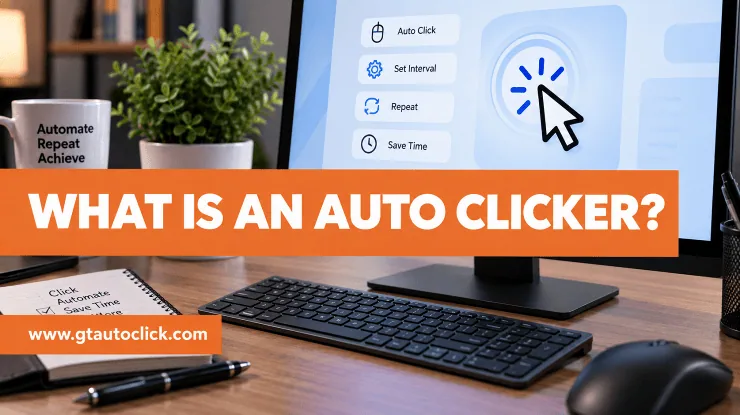
If you have ever had to click the same button hundreds or even thousands of times, you already know how tiring repetitive clicking can become. This is where an auto clicker can help.
An auto clicker is a software tool that automatically performs mouse clicks or screen taps for you. Instead of manually pressing the mouse button over and over again, you can tell the software where to click, how often to click, and sometimes how many times the action should be repeated.
Auto clickers are commonly used for repetitive tasks, gaming, software testing, accessibility, and other situations where the same input needs to be performed repeatedly. They are generally designed to automate input rather than modify the application being controlled.
What Is an Auto Clicker?
An auto clicker is a program that automatically generates mouse clicks or screen taps at a specified location and interval.
For example, suppose you need to click the same button every two seconds for several minutes. Doing this manually is not difficult, but it can quickly become boring and inconvenient. With an auto clicker, you can select the button’s location, set the interval to two seconds, and let the software perform those clicks automatically.
The basic idea is simple: an auto clicker replaces repetitive manual input with automated input.
On a computer, the software typically simulates mouse clicks through operating-system input interfaces. On Android devices, some auto clickers use the Accessibility Service API to generate touch events at locations selected by the user.
This doesn’t mean every auto clicker works in exactly the same way. Features, supported platforms, permissions, and automation options can vary from one application to another.
How Does an Auto Clicker Work?
Most auto clickers work by sending simulated input commands to your device.
On a Windows PC, for example, an auto clicker can generate a left or right mouse-click event without you physically pressing the mouse button. The operating system receives the simulated input and the application you’re using generally responds to it just as it would to a normal mouse click.
The same basic concept applies to other supported platforms, although the underlying technology can be different.
Many auto clickers let you choose a specific screen position where the clicks should occur. Others can work based on the current cursor position, meaning the software clicks wherever you place your mouse.
Once the location has been selected, you can usually configure the click interval. This determines how much time passes between individual clicks. A shorter interval means the software clicks more frequently, while a longer interval produces slower clicks.
What Can You Do With an Auto Clicker?
The usefulness of an auto clicker comes from its ability to handle repetitive actions without requiring constant manual input.
Here are some common ways people use them.
Repetitive computer tasks
Some tasks involve clicking through the same buttons, dialogs, or interface elements repeatedly. An auto clicker can reduce the amount of manual work involved in these situations.
It can be useful for certain repetitive data-entry workflows, form interactions, and confirmation steps, provided that automating those actions is permitted by the software or service involved.
Gaming
Auto clickers are also popular among gamers, particularly in games that involve repetitive clicking.
For example, an auto clicker may be used for repetitive actions in idle or incremental games where the same input needs to be performed repeatedly.
However, players should always check the rules of the particular game. Some online games prohibit automation and may take action against accounts that use it.
Software and app testing
Developers and testers sometimes need to trigger the same interface action many times to see how an application behaves.
Automated clicks can help with certain types of repetitive UI testing, including situations where a tester wants to repeatedly interact with the same button or interface element.
More advanced testing tools can do much more than a basic auto clicker, but a simple click automation tool can still be useful for straightforward repetitive tests.
Accessibility
Auto clickers can also have legitimate accessibility applications.
People who have difficulty repeatedly pressing a physical mouse button or touching a screen may benefit from software that automates repetitive input.
On Android, some auto clickers use the Accessibility Service API, an official Android framework designed to provide accessibility functionality. Similar system-level input interfaces are also used by legitimate accessibility and automation software.
What Features Does an Auto Clicker Usually Have?
The exact feature set depends on the program, but several options are common.
Click location
You may be able to choose between clicking at the current cursor position or repeatedly clicking at a predefined location.
Click interval
This controls the delay between clicks. You can usually make the clicking slower or faster depending on the task.
Click type
Depending on the application, you may be able to select different actions, such as:
- Left click
- Right click
- Double click
- Click and release
- Click and hold
Not every auto clicker provides all of these options.
Number of repetitions
Some tools allow you to specify exactly how many times an action should occur. Others can continue clicking until you manually stop the automation.
Hotkeys
A hotkey provides a convenient way to start or stop the auto clicker without opening its window every time.
For example, you might assign one keyboard shortcut to start clicking and another to stop it. This can make the automation much easier to control.
Macros
More capable auto clickers may allow you to create a sequence of actions rather than performing one repeated click.
A macro might contain several click locations, different click types, intervals, and repetition settings. This gives you more flexibility when automating a multi-step task.
Once you understand these basic settings, you can try an auto clicker yourself and see how they work in practice. Download our auto clicker to get started with automated clicking.
Are Auto Clickers Safe?
An auto clicker isn’t automatically safe or unsafe simply because it is an auto clicker.
A basic auto clicker is primarily an input automation tool. Its job is to generate clicks or taps, not to hack the application it interacts with.
However, the safety of a particular auto clicker depends on the software itself and where you obtained it.
For example, downloading an auto clicker from an untrustworthy website can expose you to a modified installer, bundled unwanted software, or malware. That’s a risk associated with the particular download and application, not with the concept of automated clicking itself.
It’s also worth paying attention to permissions. A simple clicker generally doesn’t need access to unrelated personal information just to generate mouse clicks. On platforms such as Android, however, accessibility-based auto clickers may require accessibility permissions because that is how they perform their automated interactions.
Before installing any auto clicker, download it from a trustworthy source and review what the software is asking you to install or allow.
What Can’t a Basic Auto Clicker Do?
A coordinate-based auto clicker is much simpler than it might appear.
It generally doesn’t need to understand what’s displayed on your screen. If you tell it to click at a particular coordinate, it can send a click to that location without necessarily knowing whether the location contains a button, image, text field, or something else.
Likewise, simulating a mouse click doesn’t automatically give the software access to another application’s internal data.
A basic auto clicker also doesn’t inherently bypass application security, modify game files, or hack the program it is controlling. It is simply generating input that the operating system or device can process.
That said, these limitations aren’t universal. Some automation applications include additional capabilities such as screen recognition, scripting, recording, or other advanced features. Therefore, it’s better to judge an individual program by its actual features and permissions rather than assuming every auto clicker behaves identically.
Conclusion
An auto clicker is essentially a tool for automating repetitive clicks or taps. You can use one to click at a particular location, control the time between clicks, repeat an action a certain number of times, or start and stop an automation with a keyboard shortcut.
Its uses range from repetitive computer tasks and software testing to accessibility and certain types of game automation.
The important thing to remember is that an auto clicker is not inherently a hacking tool. A basic clicker generally simulates normal user input rather than accessing or modifying the application behind that input.
If you’re considering using one, focus on the specific software you’re installing. Check its source, features, permissions, and reputation before giving it access to your device. With those precautions in place, an auto clicker can be a convenient way to take some of the frustration out of repetitive clicking.